The Availability Grid: Who's Available, and When
Instead of guessing who's available when, record it: in the availability grid, you enter for each employee — down to the hour or the day — when that person is available for work. Not customer availability, but the availability of your own and external employees.
How it works
- Period navigation: The arrows page one period back or forward, and the period button opens a mini calendar to jump directly to a date. How long a period is — week, 2 weeks, or month — is set automatically by the payment interval of the selected group.
- Adjustable hour granularity: A slider sets how fine the columns are: 1 hour, 2 hours, 4 hours, morning/afternoon, or full day. Clicking a coarser cell checks all the hours it groups together at once.
- Row header with sorting and filtering: The employee list on the left can be sorted by first name, last name, company, or contractually guaranteed hours, and narrowed down via checkboxes to internal or external employees; the search field in the header additionally filters by name or ID number.
- Color coding: The configured weekend days and public holidays get their own background colors, so non-working days stand out immediately. Which weekdays count as the weekend is configurable — it isn't Saturday and Sunday everywhere (for example the Sabbath or other country-specific rest days).
- Mouse or keyboard editing: A click toggles a cell, and dragging with the mouse button held down marks several cells at once; with the arrow keys you can navigate the grid just as well and confirm with the space bar or Enter.
- Automatic saving: There's no Save button — changes are saved automatically about one second after the last edit.
Good to know
- A day with no marks at all stays completely open for scheduling. As soon as at least one hour on a day is marked available, that day counts as fully recorded: only the marked hours can be used for scheduling, and every other hour of that day is locked.
- Customers never appear in the grid — only your own and external employees with a membership overlapping the displayed period are shown.
- A booked absence always overrides availability — even with the checkbox ticked, no assignment happens on that day.
- The availabilities you record feed directly into Auto-Planning: One Click, the Rest Runs in the Background: the algorithm only schedules within the reported time windows.
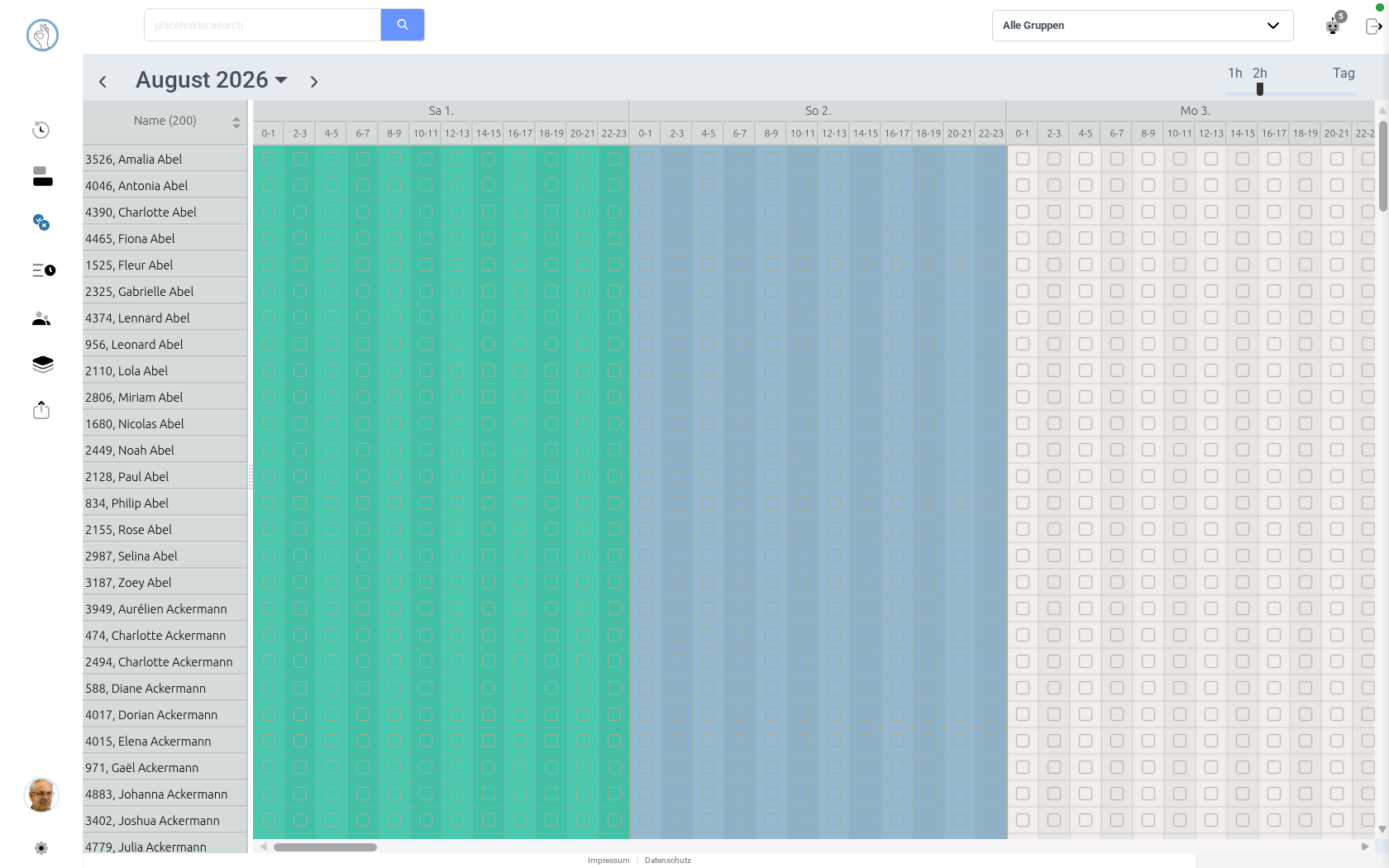 Screenshot shown in German — the app itself is available in English.
Try it yourself: Klacks Playground — login admin@test.com / P@ssw0rt1, data resets daily.